
At the blog this week there are a few tips and tricks. After finishing the Artstation challenge I thought it could be a good idea to share tips and tricks.
These tips and tricks are focused around the node network, from getting a clean graph to working faster in the network.
1. Colors and shapes of nodes
Starting with a basic tip that helps you out organizing and making your graph a bit more readable. Giving nodes a different color or shapes will help you out in bigger graphs or can be used to mark nodes that need a rework or optimization. You can create rules for what colors and shapes mean like red means that it is not procedural but needs to be procedural in the future. Make sure if you are working with other people that you have the same rules so there is no misunderstandings.
Shortcuts for colors are "C" and for the shape "Z"

2. Moving nodes around
You can move nodes around by selecting them drag them around. But in Houdini you can also hold control or shift to move whole node networks based on the current selected one.
With Control you will move all the nodes underneath the selected node and with Shift you move all the nodes above the selected node.
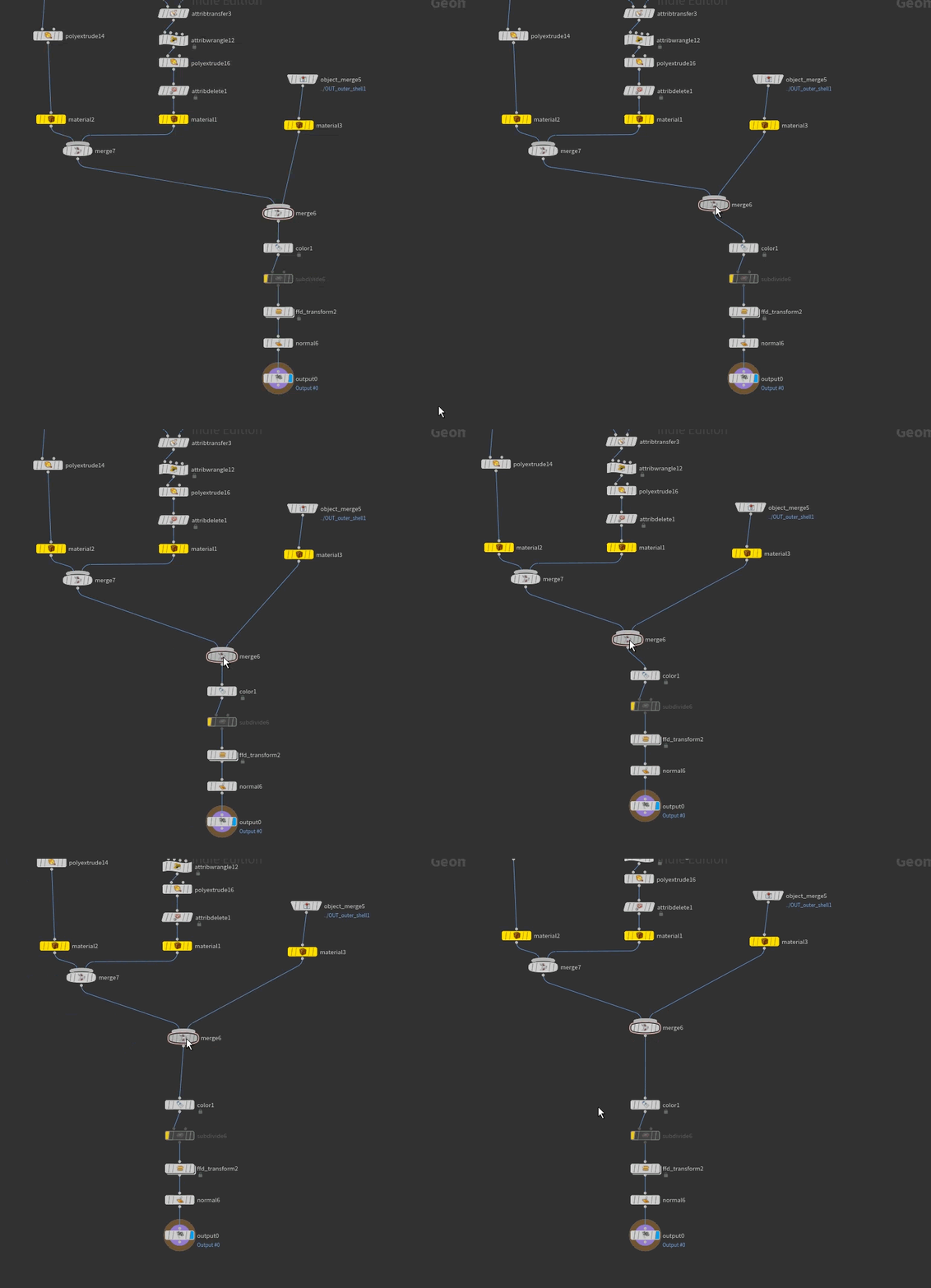
3. Align nodes
After you have build a network of multiple nodes you might need to organize the layout of your graph. There is a fast way of automatically sorting the network if you press "L" but I'm not always a fan of it as it will change the whole layout.
By holding "A" you see that the mouse cursor changes icon, now if you click and move your mouse in a direction it will align in that direction. If you move the mouse downwards nodes will align vertical. Notice that based on where you click with the mouse that is where it starts to align.

4. Reference a full node
In some situations you might need a copy of a node will keeping the same values linked to each other. By Alt you can copy a node and with Alt+Control+Shift you copy the node and it is fully referenced to the original node. I not using it often but it is good to know that this is possible if you want to reference the same node multiple times.
Hold down Alt+Control+Shift to create a referenced copy.

5. Extract content of assets
In Houdini you will find a lot of Digital assets or you have your own Digital assets which I definitely recommend doing. It can happen often that you want to look into these networks. You can unlock the HDA and go in the network but you can also "unpack" the HDA. If you click on extract contents it while swap the HDA with the network of the HDA. This can be interesting if you found a HDA that does something close you want, by extracting the nodes you can then adjust the extracted node network and make your changes to it. You don't have to worry about overwriting the HDA as you extracted the nodes.

6. Quickmarks
Quickmarks allows you to switch between your networks fast by pressing the 1 to 5 keys. That means that you can store 5 locations you want to jump to. So if you have a network with multiple nodes in the object level or multiple sub-networks, this will make your life easier switching between networks. Like you can set a Quickmark for your geo to destroy (SOP) and you set a quick mark for your simulation network (DOP). This feature was added in Houdini 16 and maybe some of you might have missed it.
Hold Control + Press on of the numbers at the top of the keyboard. Example Control+1 , every time the number 1 key is pressed you will jump to that view.

That was it for this week hope you enjoyed some of these tips and tricks!
See you next week, and feel free to share feedback or thoughts about the blog.